SEO experts and WordPress developers are well aware of the frustration that comes with fixing a 500 error . This is one of the most frustrating issues that can happen when using Elementor. In this article, we will learn how to professionally approach and fix
Insights from the guide
- Understanding the server error and its implications for your WordPress site
- Learning techniques and tools for basic diagnosis of Elementor problems
- Suggestions for practical steps to address and fix error 500 in Elementor
- Understanding methods for preventing future errors and maintaining site stability over time
- Review of processes for restoring a WordPress site to a working state
Introduction: Understanding the Elementor Error 500 Problem
With the rise of WordPress as a digital advertising platform, server errors can occur at the most inopportune moments. An internal server error is a serious problem that can put your website out of action, so it’s important to understand the source of the problem and the steps to resolve it.
What is a 500 error on WordPress sites?
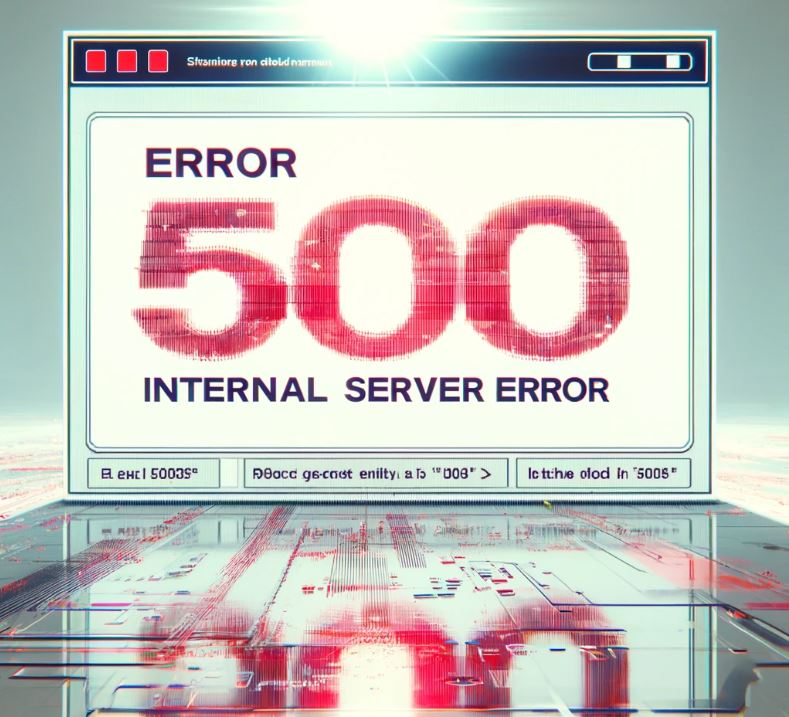
In the world of web development, HTTP Error 500 , or Internal Server Error , signifies an unexpected failure status that prevents the server from successfully responding to HTTP requests. The problem often stems from misconfiguration, issues with PHP code, or conflicts with WordPress themes and plugins.
Effects of a 500 error on your website
Not only do server errors like these disrupt the usability of a website, they can also cause widespread marketing and operational damage. The compromised user experience, impacted customer relationships, and lost traffic can lead to a significant reduction in revenue – a problem that requires immediate and focused action.
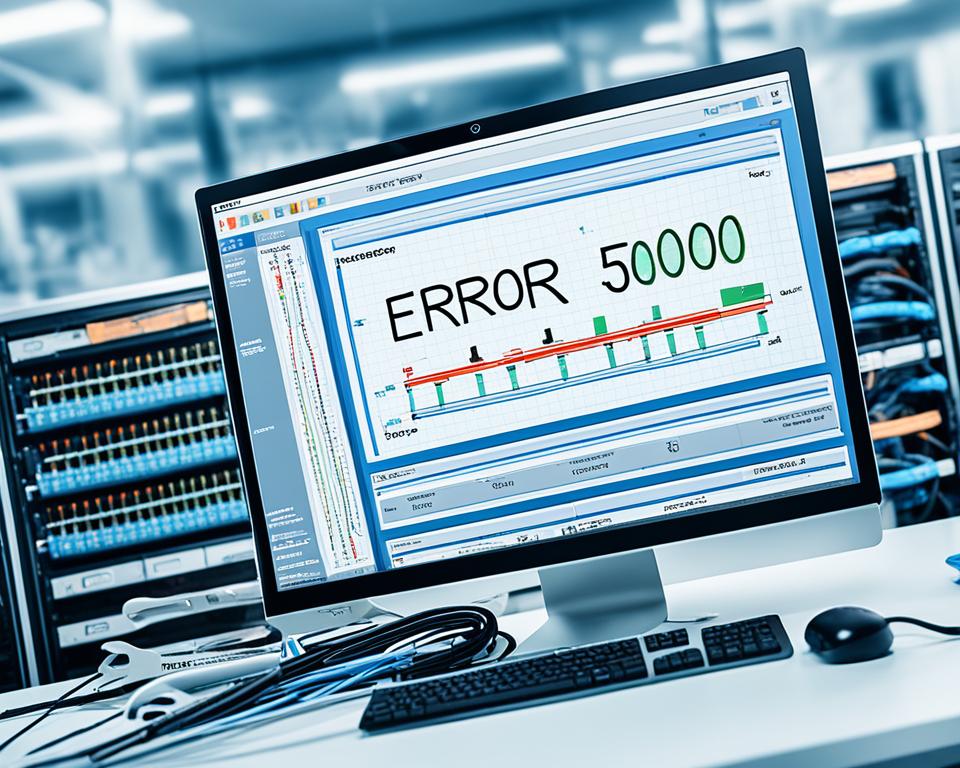
Troubleshooting a website from these aspects, and in particular fixing an internal server error , with an emphasis on preventing and understanding the causes of these problems, is essential to maintaining the reputation and stability of the site in the long term. In the next section, we will dive into diagnosing the problem and dealing with an HTTP Error 500 error in the WordPress admin interface, to help you get your site back up and running. As part of understanding the problem, being able to identify the main factors causing an internal server error can save time and effort in the further stages of repair.
Diagnosing the problem and possible troubleshooting tools
When we encounter problems with WordPress sites, it is important to carefully examine the WordPress error logs and use the right tools to diagnose and fix the problem. In this article, we will rely on proven methods for error log inspection and Debug mode , to help you understand how to deal with these challenges.
Checking WordPress error logs
To begin our journey to troubleshoot the problem, we will need to check the WordPress error logs . These logs document all the actions that occur on the site and include important information that can indicate errors in the writing or execution of PHP code . Here is one simple way to access this information:

Alternatively, you can activate the dedicated tools provided within the WordPress administration panel, which will allow you to perform error log checking more easily and effectively.
Using Debug mode to identify problems
For the more advanced user, the ability to use Debug mode in WordPress to identify PHP issues will be a particularly powerful tool. Once you do this, any code errors will be displayed in a clear and visible way, allowing you to identify the cause of the problem, whether it’s incompatible plugins or other issues. Here’s how to enter this mode:
WP_DEBUG will change the setting of the variable in the wp-config.php file to true.
If you are looking for a professional and quick solution to the common Elementor error problem, you should start by diagnosing it using the suggested methods. Checking WordPress error logs will help you identify the source of the problem, and using Debug mode will help you diagnose the problem directly and move the process of fixing PHP code faster.
Steps to fix Elementor Error 500 in WordPress
Sometimes, a server error can be an impenetrable wall for webmasters. Once you know
- Removing problematic plugins: First, remove or disable any plugin that is not necessary or that may have caused the problem, in order to locate the cause of the error.
- Fixing theme files: Examining and fixing theme files can be a significant step in finding faulty or vulnerable code.
- Increasing PHP memory quota: Often times, resolving a 500 error involves increasing the memory allocated for running scripts.
- Restore Themes or WordPress: When these steps don’t help, you may need to restore the site to a previous version or reinstall WordPress without bugs.
Finally, don’t forget to follow our WordPress error fixing guide to prevent similar issues in the future. Regular maintenance, constant updates, and occasional health checks will keep your website stable and provide an uncompromising user experience.

conclusion
Examining and fixing the Elementor Error 500 error in WordPress is a task that requires patience and attention to detail. During the guide, we reviewed the relevant steps for locating and resolving the problem, from the initial inspection to efficient searching in the error logs. The in-depth understanding of the debugging tools and advanced repair solutions gives us the ability to restore the site after a server error and ensure its status as a stable and high-quality work tool.
You, website owners and administrators, are advised to take note of the Elementor repair scheme and not neglect the maintenance section and periodic inspections. These can ensure that when necessary, repairs will be carried out accurately and quickly, and will also reduce the chance of such faults recurring in the future.
Given the importance of keeping your WordPress site running smoothly and without interruption, it’s important to keep open lines of communication with your developers or a quality hosting company that can provide support if needed. Restoring a WordPress site after a server error is a task that requires expertise and knowledge of the right tools. Remember, a little preventative maintenance can save you a lot of trouble in the future, and in fact, speed up the site’s return to normal if an outage occurs.
FAQ
What is a 500 error on WordPress sites?
Error 500, also known as an Internal Server Error or HTTP Error 500 , is a problem with the server that prevented it from displaying a web page properly. It is a generic error that does not indicate a specific problem with the Elementor page editor or the WordPress system.
How can a 500 error affect my website?
A 500 error can cause a loss of website traffic, a negative user experience, a negative impact on SEO rankings, and even damage to your business or brand image. It’s important to fix it as soon as possible.
How can I diagnose the source of the error?
There are several tools available to help you diagnose the source of a 500 error. You can check your WordPress error logs for clues, or use Debug mode to identify issues with your plugins, themes, or PHP code. Often, the problem lies with incompatible plugins or themes.
What are the steps to fix error 500 in Elementor?
The repair steps may include: activating maintenance mode, removing incompatible plugins, checking and fixing PHP code, increasing the memory quota allocated to PHP, checking file permissions, and if these do not work, performing a restore of the theme or WordPress itself.