Quick and easy WordPress installation guide
30/04/2024

Want to start building your own website or blog? A standalone WordPress installation is your gateway to the exciting world of content creation and website management. Without any need for complex technical knowledge, you can set up a professional website or blog with the help of this guide. The WordPress platform offers endless tools and options for the average user, and we are here to make the experience as easy and simple as possible.
Whether you’re in the process of creating a WordPress website for a small business or you want to share your insights with the world by easily setting up a blog , all the information you need is here. Follow the simple steps and you’ll be up and running in no time.
Key points:
- Choosing a WordPress platform that suits your personal or business needs.
- A step-by-step guide to installing WordPress yourself.
- Secrets for creating a professional and attractive website or blog for users.
- How can you start producing content and gain an online presence in the shortest time.
- Tips for keeping your website safe, up-to-date, and search engine friendly.
- WordPress website hosting
Understanding WordPress Basics Before Installation
In order to wisely choose the right blogging platform for your project’s needs, it’s important to understand the basics of the WordPress platform and the significant differences between the two main options: WordPress.com and WordPress.org.
What is WordPress and how does it work?
WordPress is a content management system (CMS) that allows you to easily create and manage websites. The power of the WordPress platform is reflected in its flexibility and a large and active community of developers and users. The site can be customized to any need, both through design templates and through plugins that extend and add advanced capabilities.
Differences between WordPress.com and WordPress.org
Choosing a blogging platform can be confusing, especially when the two platforms sound the same – but they are very different.
WordPress.com provides a hosting service with a ready-made installation of WordPress, without having to worry about maintenance or storage. On the other hand, WordPress.org offers WordPress software as an open source platform that you can install on your own hosting, which gives you full control over your site and does not limit the use of plugins or templates.
In the table below you can see the comparison between the two versions:
| attribute | WordPress.com | WordPress.org |
|---|---|---|
| storage | Managed and maintained by WordPress.com | Your own storage is required |
| Control and flexibility | Limited | Full control and customization |
| Plugins and templates | Limited selection for paid subscribers | Free access to a large repository of plugins and templates |
Choosing between WordPress.com vs. WordPress.org depends on your personal needs and the ambitions of your website or blog. If you’re looking to build something that has individuality and less standard technical requirements, WordPress.org may be a better fit for your needs.
System requirements for installing WordPress
Before you begin installing WordPress, it’s important to know that it’s a platform that requires a hosting provider and a specific database system. Additionally, you should make sure that the service you choose supports the required technologies.
Choosing a web hosting service
When choosing WordPress hosting services , you should review the various solutions on offer and tailor them to the specific needs of your site. Look for a hosting provider whose environment is customized and already has many recommendations from the Israeli community and the development world.
PHP and MySQL requirements for WordPress
To ensure smooth operation and efficient performance of the site, WordPress requires support for advanced versions of PHP and MySQL. Installation requirements for WordPress on these versions are essential for stabilizing the site and adapting it to the latest standards.
Please note that the installation may fail if the server does not support the PHP and MySQL versions required by WordPress!
- PHP version compatibility check – The site must run on at least PHP version 7.3.
- Check MySQL version – WordPress requires MySQL version 5.6 or MariaDB version 10.1 or higher.
- Preparing a hosting environment – The hosting service should include easy access to installing WordPress and support for up-to-date installations.
In conclusion, choosing an appropriate hosting service and making sure it supports all advanced system requirements will maintain your website’s performance and give you peace of mind in managing it independently.
Preparation steps before installing WordPress
Before you begin planning your WordPress installation , it’s important to prepare the ground for the process to run smoothly. Remember, good preparation is the foundation for a functional and well-maintained website. Below is a structured list of the WordPress pre-purchase checklist , each step and its purpose.
- Budget review and needs characterization – determining the required functionality and launch costs.
- Domain Purchase – Search and purchase a web address that will reflect the brand’s content or activity.
- Choosing a hosting service – research the hosting providers that best suit your needs.
With this preparation list, you will be ready to perform the WordPress installation with fewer technical obstacles and prepared for any challenge.
Please note: The installation plan should be customized to your website’s goals and budget.
The careful preparation will be reflected in the success of the site and its ability to meet the demands of the digital future.
| task | purpose | Auxiliary tools |
|---|---|---|
| Understanding needs | Functional characterization of the site | Characterization questionnaire, market research |
| Domain purchase | Identifying and securing the Internet address | Top domain registrars |
| Storage selection | Finding a suitable storage provider | Comparing hosting packages |
How to choose and purchase a domain
Building a new website starts with a very important step: choosing a domain for WordPress . The domain name, or web address of your website, is the initial vision for visitors and is an integral part of your brand online. How do you choose and purchase the best domain name ? Here’s a guide to make the process easier for you.

What is the relationship between a domain name and WP?
WordPress, one of the world’s most popular blogging and content management platforms, is home to nearly a quarter of the websites on the internet. The domain name you choose affects brand recognition and user experience, so it’s very important to choose it carefully and in a way that allows for a seamless and intuitive domain purchase .
Tips for choosing a successful domain name
- Try to choose a short, memorable name that conveys credibility.
- Avoid numbers and hyphens as they can create confusion.
- Consider focusing on how the domain serves your industry and occupation – keywords in the domain can be helpful.
- Check availability: Before you begin the domain purchase process, check whether the domain you have chosen is available.
Enhance your brand and digital presence by choosing a domain that represents the business and quality you offer. Investing in a suitable domain will pay you back multiple times in the near and distant future.
Opening a storage account and installation via the administration panel
When it comes to setting up a WordPress website, there are two crucial components to consider: opening a quality hosting account and installing the system correctly. When choosing a recommended WordPress hosting service, it is important to look for those that offer advanced technical support, high speed, and excellent performance. These details will be the basis for a stable and fast website.
Recommended servers for WordPress hosting
Choosing a hosting server wisely improves the performance and reliability of your website. You should consider the different plans offered on the market, and the balance between price and quality. Many service providers provide a WordPress hosting account that also includes easy WordPress installation, so that for less experienced installers the process is simple and efficient.
Manual installation versus automatic installation
When installing WordPress, you have to choose between two approaches: manual or automatic installation. While manual installation requires more technical knowledge and tinkering with system files, many leading hosting providers offer WordPress installation in an administration panel , which opens up a world of convenience and ease of configuration at the click of a button.
The choice between the methods depends on your comfort level with technology and personal preferences. Most users tend to choose the automatic installation option because it saves time and removes the need to use tools like FTP or manually tweak the website source code.
In conclusion, if you are considering building a WordPress website, opening an account with recommended WordPress hosting is the most important step after choosing the right domain name. Consider the different options and the method that suits you for installation, and don’t hesitate to take advantage of the built-in tools of the admin panel for this purpose.
How to install WordPress using Softaculous
Installing WordPress with Softaculous is a simple and effective solution that will save you time and effort. This automated installation process is done in a few easy steps through the admin panel of your hosting service, where Softaculous is installed. Here’s how to make the installation smooth and fast.
- Check for Softaculous support on your WordPress hosting and make sure the service is included in the hosting package you choose.
- Log in to your hosting control panel and look for the Softaculous icon or the automatic installation option.
- Select WordPress from the list of software that Softaculous offers and follow the instructions that appear for installation.
Behind the scenes, Softaculous creates the database and configures the files needed to run WordPress, validating all required settings.
In fact, choosing to install WordPress with Softaculous allows you to set up a functional website in just a few minutes, without diving into the complicated technical details of the code.
| action | Description |
|---|---|
| Choosing WordPress on Softaculous | Find WordPress in the automatic installation list and click on it. |
| Setting details | Fill in the website information, including username and password. |
| Installation completion | Follow the rest of the instructions and complete the installation process by clicking ‘Install’. |
At the end of the process, you will have a WordPress system installed, ready to use and customize. You can start working on the website design, adding content and implementing various features through the simple and user-friendly WordPress administration interface. Softaculous in WordPress hosting is one of the best tools for quick installation and offers a lot of help for beginners and professionals alike.
Installing WordPress manually via FTP
Manual WordPress installation is a process that gives the user complete control over the creation of the website. Sometimes, installation via FTP is required when automatic installation is not possible or when you are looking to install a specific version of WordPress or a special configuration.
Installing the database
Creating a WordPress database is the first and most important step during the manual installation. You need to create a new database through the admin panel of the hosting service where your website will be stored.
Editing the wp-config.php file
After creating the database, you need to update the wp-config.php file with the database information you created. This is the WordPress configuration file that connects your site to the database.
| stage | Description | Notes |
|---|---|---|
| 1 | Download WordPress file | Download the latest version from the official website. |
| 2 | Uploading files to the server via FTP | Use FTP software to upload WordPress files to the relevant storage folder. |
| 3 | Creating a database | This can be done from the storage management panel. |
| 4 | Adjusting the wp-config.php file | Update the database details in the file |
| 5 | Running the installation file | Visit the WordPress installation page to complete the installation. |
Site configuration after installation
After building the foundations, the fun part remains – working on the look and feel of your site. Choosing WordPress themes and installing WordPress plugins are two key elements that will enhance the usability and aesthetics of your site.
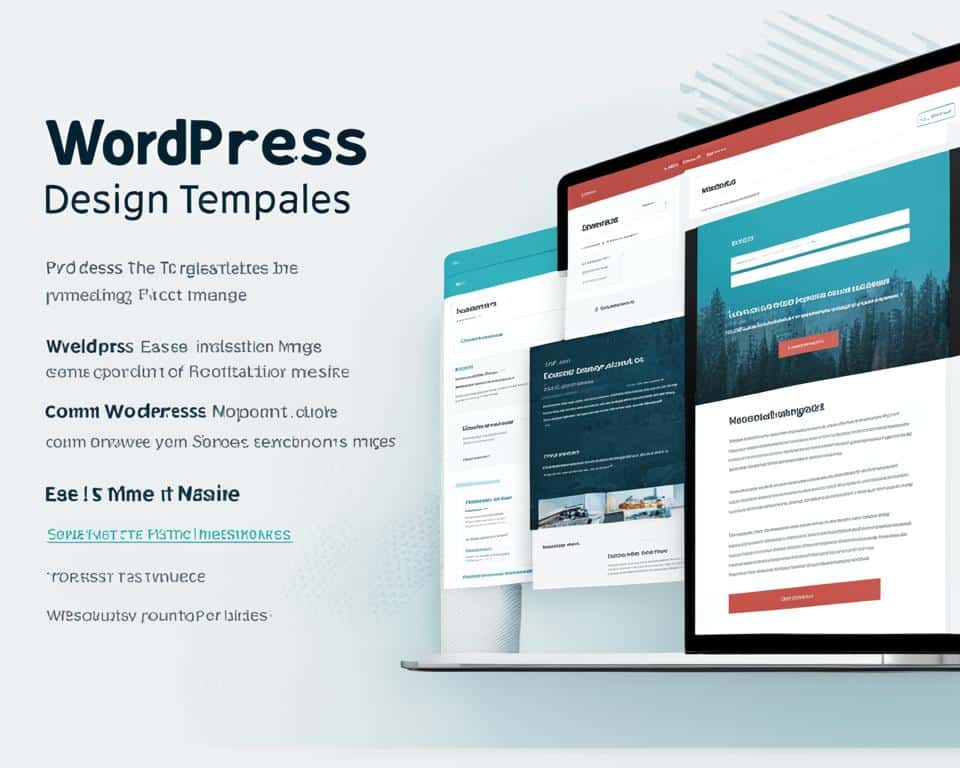
Choosing a design template (Theme)
Choosing a template is one of the first and most important decisions to make after installing WP. It determines the nature of the site and the feeling it conveys to users. It is important to choose a template that is suitable for the optimal configuration of WP and suits your specific site needs, while considering loading speed, built-in compatibility for mobile devices, and ease of use even without in-depth technical knowledge.
Useful Plugins for WordPress
Plugins are the heart of WP functionality, allowing you to add any service or capability you choose. From security plugins to digital marketing tools, you can find plugins for every need. Take your time choosing plugins, and always check that they are up to date and supported to maintain high performance and a safe working environment. Remember, it is always best to start with only the essentials and add as needed.
| category | Recommended supplement | Description |
|---|---|---|
| securing | Wordfence Security | Comprehensive website protection against attacks and hacks |
| SEO | Yoast SEO | Tools for optimizing content for search engines |
| Performance | W3 Total Cache | Improving website speed and saving server resources |
Common WordPress installation problems and how to solve them
Installing WordPress can be a smooth and hassle-free process, but sometimes WordPress installation errors arise out of the blue and require quick and efficient WordPress troubleshooting . New and experienced installers alike may encounter ways to fix WP bugs, and knowing the solutions can save time and hassle.
Before we explain how to find and fix common problems, it’s important to remember that effective troubleshooting is always done in a step-by-step manner: checking error messages, checking relevant files, and checking the server settings.
- Database connection failed – You should check the wp-config.php file and make sure the username, password, and database name settings are correct.
- Errors when uploading images – It’s a good idea to check upload folder permissions and make sure they are set correctly.
- Display error after template update – go to a recent backup and try again, checking that the template is compatible with the current version of WordPress.
When it comes to a failed WordPress installation or update, sometimes you may need to restore the site to a previous version, and act as the situation requires.
| problem | Symptoms | Recommended solution |
|---|---|---|
| Database connection error | The website does not load and shows a connection error. | Check the wp-config.php file |
| Error 500 – Internal Server Error | White page or generic error message | Checking .htaccess file, and PHP settings |
| Update problems | Error messages when updating WordPress, templates, or plugins | Manual update and compatibility check |
If necessary, don’t hesitate to consult WordPress support communities or seek out a domain expert to get quick and accurate WordPress troubleshooting .
Tips for proper positioning in search engines after installation
After building a WordPress website, it is important to pay attention to actions that will ensure its proper positioning in search engines. Search engine optimization is at the heart of the efforts, and the right WordPress SEO tools should be used to ensure optimal results.
SEO-friendly and high-performance maintenance
Maintaining high SEO performance requires knowledge and understanding of the various tools available to you in WordPress. First, you should choose quality plugins designed for this purpose, such as Yoast SEO or All in One SEO Pack, which allow you to effectively manage work on content, meta tags, and URL structure.
Website monitoring and analysis using Google Analytics
Once you have installed and are using WordPress SEO tools, it is recommended to monitor your website performance using Google Analytics. Using Google Analytics to monitor your website allows you to collect data and gain insight into user behavior on your website, which is important for improving your website experience and tailoring your content to your target audience.
conclusion
By summarizing the process of installing WordPress , you can see that the process is not as incomprehensible as it may seem at first glance. The steps outlined in this guide provide a clear and precise roadmap that will guide you from the planning stage to the full implementation of your WordPress-powered website.
The steps to success with WordPress are in your hands, and they include an informed choice of hosting service, a relevant domain, proper configuration of the admin panel, and a good understanding of the tools necessary to manage and promote the site. And now, with this invaluable tool – a complete WordPress guide – in your hand, you are welcome to use it to implement and continue to develop your site for greater success.
Take time to explore and customize your new site, test its content, and enhance it with plugins and additional support. Managing a site doesn’t end with the first post published or the configuration of templates. It’s an ongoing journey of learning, tuning, and marketing. Best wishes for success in all stages of building your site and promoting your digital presence.
FAQ
How do you get started with a standalone WordPress installation?
To get started with a self-hosted WordPress installation , you will need to choose a hosting provider, purchase a domain, and follow the instructions provided by WordPress on their official website. Don’t worry, you don’t need any advanced technical knowledge to complete the process.
What is the difference between WordPress.com and WordPress.org?
WordPress.com provides a recycled hosting platform that includes the WordPress software, while WordPress.org allows you to download and install the WordPress software independently on a ready-to-use web server.
What system requirements are needed to install WordPress?
The main system requirements are PHP support (at least version 7.4 or higher) and a MySQL or MariaDB database. Furthermore, hosting services that support .htaccess files are needed for advanced settings.
What are the steps to choosing a successful domain name?
A good domain name should be short, memorable, and relevant to the content or brand the site represents. It is important to avoid characters such as hyphens and check that it does not infringe on copyright.
How do you choose between manual and automatic WordPress installation?
Automatic installation is suitable for those who do not want to delve into the technical procedures and want to set up the site quickly and easily. Manual installation is required when you need special adjustments or when the hosting does not support automatic installation.
What is Softaculous and how does it help with WordPress installation?
Softaculous is an automated installation tool that helps you install WordPress and other software clearly and easily, through your hosting service’s admin panel.
How do you install WordPress using FTP?
To install WordPress via FTP, you will need FTP software to upload the WordPress files to your hosting server, create a database, and edit the config.php file with the appropriate settings.
What plugins and themes are recommended for WordPress?
There are many plugins and design templates to suit different needs. Some popular plugins include Yoast SEO for search engine optimization, WooCommerce for online stores, and Elementor for building graphical pages. For templates, Astra and OceanWP are common choices.
What do you do when you encounter problems during the WordPress installation?
If you encounter any issues, the first thing to do is check the WordPress support documentation, browse the WordPress expert forums, or contact your hosting support. Sometimes, a small fix like a settings update or reinstallation can solve the problem.
How can I improve my website’s search engine optimization after installation?
After setting up your website, it’s a good idea to install an SEO plugin, such as Yoast, and follow its recommendations to improve your website content. You should also connect to Google Analytics and Search Console to analyze your website data and understand how to improve your search ranking.