Elementor – Frequently Asked Questions
10/02/2022

Working on it right now, questions and answers coming soon
Elementor – Frequently Asked Questions
One of the most significant tools in the website building market today is Elementor Pro.
Basically, Elementor Pro is a plugin for WordPress websites that allows the site owner to edit the site’s content with maximum ease.
There are quite a few questions about operation and malfunctions in Elementor Pro.
Elementor Pro FAQ:
How to fix the “Can’t Edit?” error in the Elementor editor.

The cause of the error may occur for several main reasons:
A. Some plugin is installed that is preventing the Elementor editor from working.
B. The website’s PHP version does not match the Elementor version. The error usually appears after updating a version of the Elementor.
C. Load on the storage server, if the processor (CPU) and/or internal memory (RAM) are busy, this may affect the loading time of the editor and Elementor may receive a TIMEOUT error indicating a long loading time.
Possible solutions to fix the problem:
A. Disable all plugins except the Elementor plugin. Temporarily disable all plugins installed on WordPress and then try to re-enter the Elementor editor and then see if the editor loads properly. If the Elementor editor loads, you will need to enable the plugins one by one and see which plugin is causing the Elementor editor to stop working. If that doesn’t work either, we will enable all the plugins that we have turned off and try the next solution.
B. Changing PHP versions – It is possible that the PHP version that the site is running is old or not compatible with the Elementor editor. We will enter the server management panel and change the current version of PHP to version 7.4. If the change does not fix the problem, we will try changing the version to 7.2 or 7.1 or 7.0.
If changing the PHP version still did not help fix the problem, we will revert the PHP version to the previous version that was before the change. If the version is very old (PHP5 versions), it is recommended to update to a newer version (PHP7 versions).
third. To check the load on the storage server, we enter the server management panel and see in the statistics what the load status is on the server. Usually we see that the indicators are colored red when there is a load. If this is indeed the case, we will wait a few moments until the load moderates and calms down and then we will check if the Elementor editor is able to load properly. If not, we will try adding the following code to the “wp-config.php” file located in the Public_html folder in the file manager in the storage. We will add the following code:
define(‘WP_MEMORY_LIMIT’, ‘256M’);
We will put this code below the following line: * That’s all, stop editing! Happy blogging. */
We will then save the wp-config.php file and go to the Elementor editor to check if it loads properly.
D. The next step is the final step, we will completely delete Elementor and reinstall it.
Deleting does not delete all the actions you have performed on the editor, so you do not have to worry that the data you have performed will disappear. In rare cases, deleting and reinstalling may solve the problem.
In most cases, the actions specified help and resolve this problem.
If the problem still hasn’t been resolved, you are welcome to leave us a support request on the website or call: 08-9461421
And we will be happy to provide you with advice from a team of excellent WordPress programmers in the field of WordPress troubleshooting.
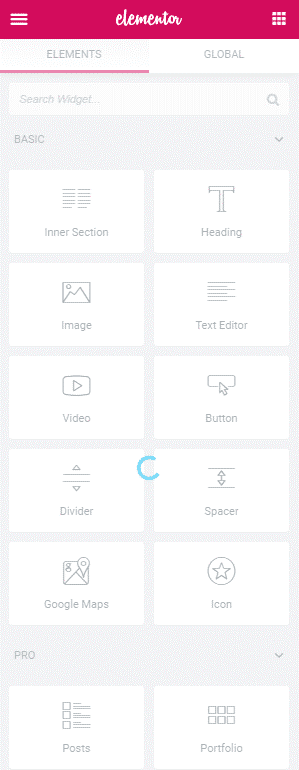
The Elementor widget bar keeps loading, how do I fix the problem?
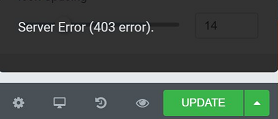
Elementor throws a 403 error when clicking the “Update” button
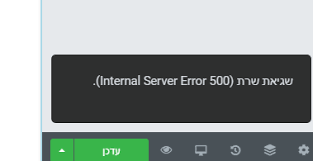
Elementor throws error 500 when clicking the “Update” button
As of today, a WordPress website combined with the Elementor Pro plugin constitutes the ultimate combination for managing a website in a very simple and user-friendly way.
Read more: What is Elementor?
Even if you, the site owner, have no knowledge of computers or programming, you can still independently maintain your WordPress site.
Host Center Web Hosting provides Elementor Pro free to anyone who purchases a WordPress web hosting package.
In addition, the Host Center team provides support and training in using the Elementor plugin as part of the service.
Host Center has a team of experts for WordPress and Elementor Pro who are available to the customer with any inquiries or questions in the field.
רכישת חבילת וורדפרס כוללת אלמנטור פרו חינם – לחץ כאן
כותב המאמר: צחי בנגיאת – מנכ”ל הוסט סנטר