How do you connect to FTP for website hosting?
30/08/2021

How do you connect to FTP for website hosting?
To upload files to a web hosting server, you must first download FTP software.
We recommend a free program called Filezilla.
The software can be downloaded here: Filzilla
After you have downloaded the software, you must obtain the login details for the FTP server of the web hosting company from which you purchased the service.
The necessary details are:
Host server – HOST
Username – Username
Password
The above details must be entered for quick connection to the relevant fields.
See explanation here:

You can also set the destination for permanent connection in the Filezilla software.
This is done according to the attached photo.
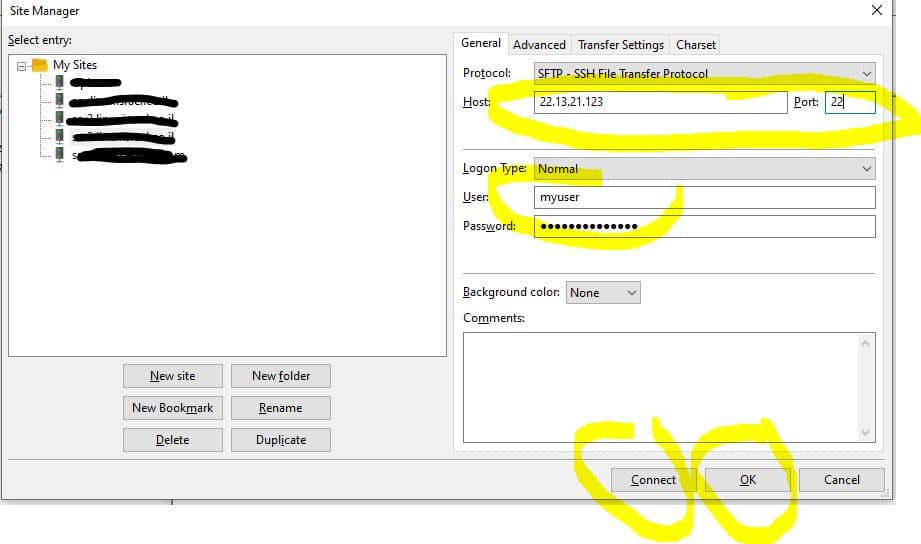
This is actually how you connect to FTP for website hosting.
The files must then be uploaded from the local computer to the remote server.
The files should usually be uploaded to the public_html folder or, on Windows servers, to the root folder.
Below is the screenshot after logging in:

More ways to upload files:
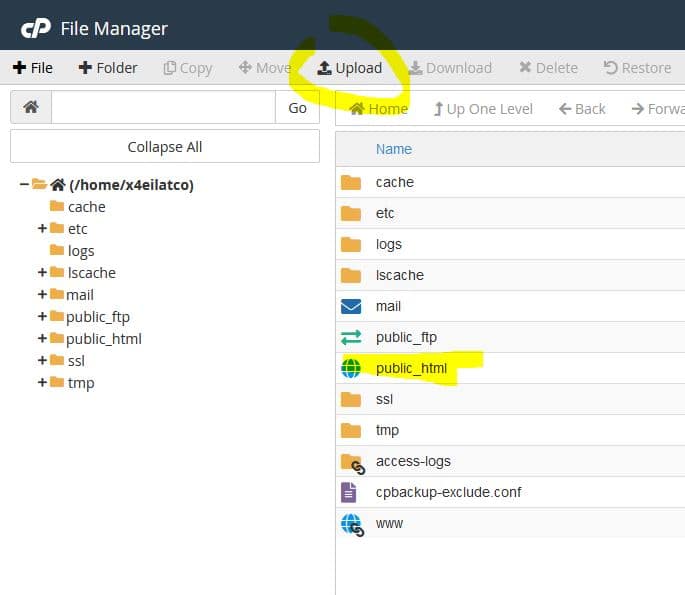
Another very popular way to connect to upload files to a web hosting server is through the cPanel file manager.
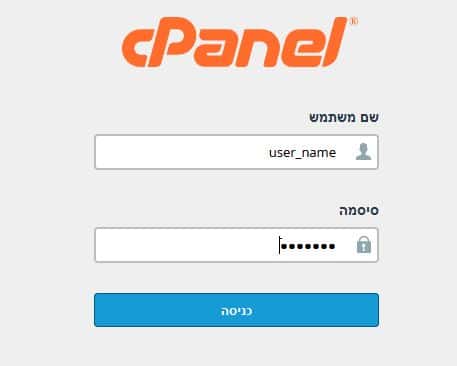
1. Connect to the cPanel control panel in this window:
2. Access the icon called: File Manager.
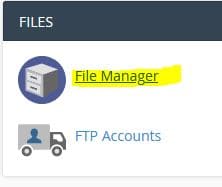
3. Go to the root folder called public_html and upload the files there according to the following screenshot:
For more information on any topic regarding website hosting / uploading files and connecting to a website hosting server, you can contact us for free advice and support here: Host Center Website Hosting Support